Shopify
If you use Shopify, you can add Improvely to your store in just a few clicks without adding any code to your theme.
To get started, Click Here to add our free Shopify app to your store.
This app will send information about visits and purchases on your store directly to your Improvely account. You’ll learn what sites, searches and ads are driving traffic to your store and generating new customers.
More from this category
Shopify
If you use Shopify, you can add Improvely to your store in just a few clicks without adding any code to your theme.
To get started, Click Here to add our free Shopify app to your store.
This app will send information about visits and purchases on your store directly to your Improvely account. You’ll learn what sites, searches and ads are driving traffic to your store and generating new customers.
More from this category
Volusion
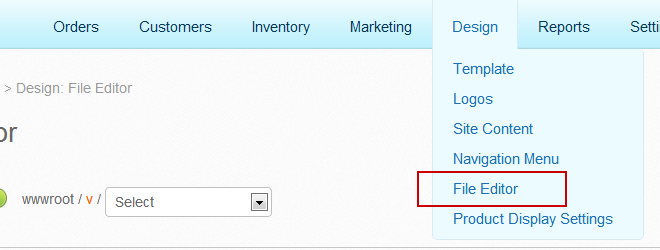
First, log in to your Volusion Dashboard. Then, click on the Design menu and choose File Editor —
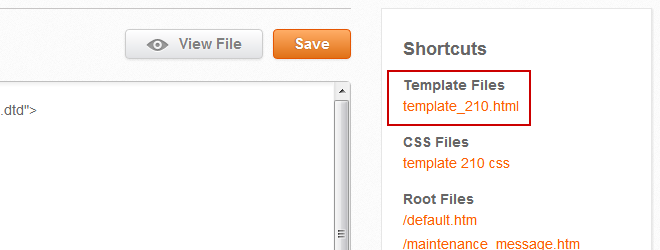
In the right column, click the first link listed under Shortcuts to choose your active template file.
Scroll to the bottom of the editor area to where you see the </body> tag. Right above that, paste the following code:
<script type="text/javascript" src="https://YOUR_SITE_NAME.iljmp.com/improvely.js"></script>
<script type="text/javascript">
  improvely.init('YOUR_SITE_NAME', YOUR_PROJECT_ID);
  if (typeof Order[0] !== 'undefined')
    improvely.conversion({
      goal: 'sale',
      revenue: Order[2],
      reference: Order[0]
    });
</script>
You now need to make two small changes to that snippet, as the code above is an example not specific to your site.
- In the first and third lines, change “YOUR_SITE_NAME” to the name of your Improvely account. If you log in at example.improvely.com, delete “YOUR_SITE_NAME” and write “example” in its place.
- In the third line, replace the “YOUR_PROJECT_ID” with your project ID, which can be found in your Improvely Website Code or the Project Settings page in your account.
In your Improvely account, you can find the number to use for step 2 by clicking Project Settings next to your project’s name after logging in.
That’s it! Press the Save button in your Volusion site to save the changes to your template. Improvely will now track all the visits and purchases at your store, and tell you the exact traffic source of each new customer.
More from this category
BigCommerce
First, log in to Improvely, click on Project Settings then click on Get Website Code. Copy the Landing Page Code to your clipboard.
Now log in to your BigCommerce account. Click on Settings then click on Analytics in the top menu.
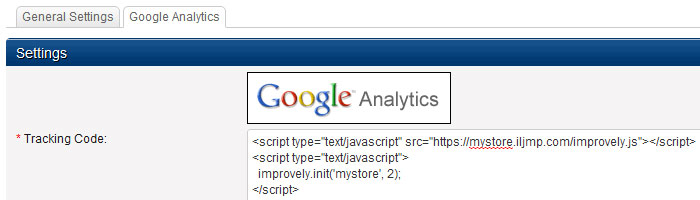
Click on the Google Analytics tab and paste your Improvely code into the box, then click the save button. If you’re also using Google Analytics, you can paste your Improvely code under your Google code in the same box.
Now click on Settings then click on Conversions in the top menu.
Copy and paste the conversion Tracking Code from your Improvely account, and paste it into the box in your BigCommerce account.
You will have to make some small changes to the code to send the order total and order number from BigCommerce back to your Improvely account:
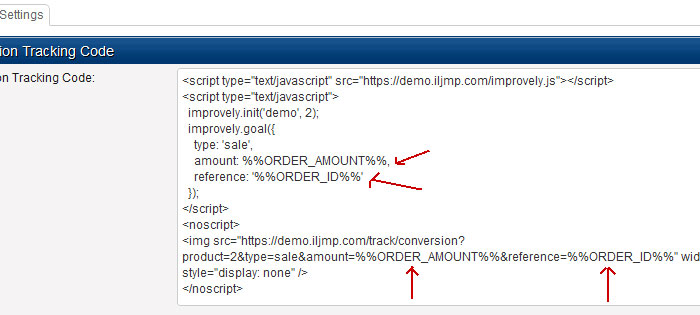
You need to change the order amount to %%ORDER_AMOUNT%% and the reference to %%ORDER_ID%% in the code. Make sure you change it in both the top <script> and bottom <noscript> portions of the Conversion Code, as you see in the image above.
More from this category
MailChimp
If you use MailChimp to send e-mails, Improvely can automatically track the clicks from your mails all the way to the signups or purchases on your website.
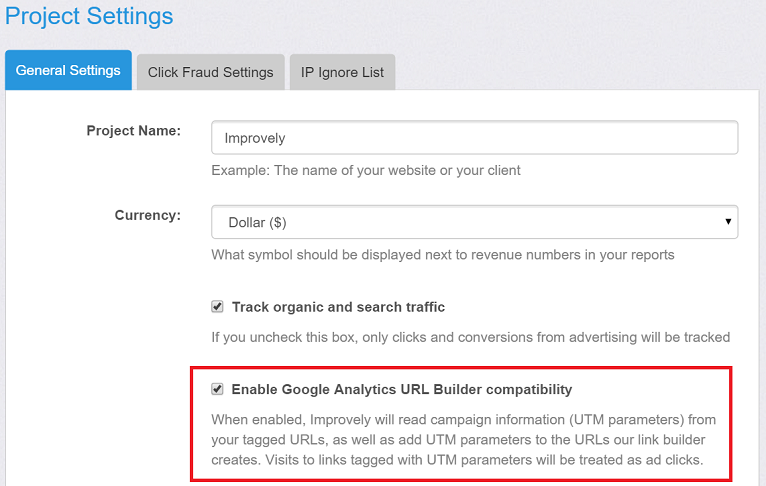
First, make sure you have enabled Google Analytics URL Builder Compatibility in your Improvely Project Settings page —
Second, whenever creating a campaign or automation in MailChimp, navigate to the Setup step and check off the Google Analytics link tracking setting —
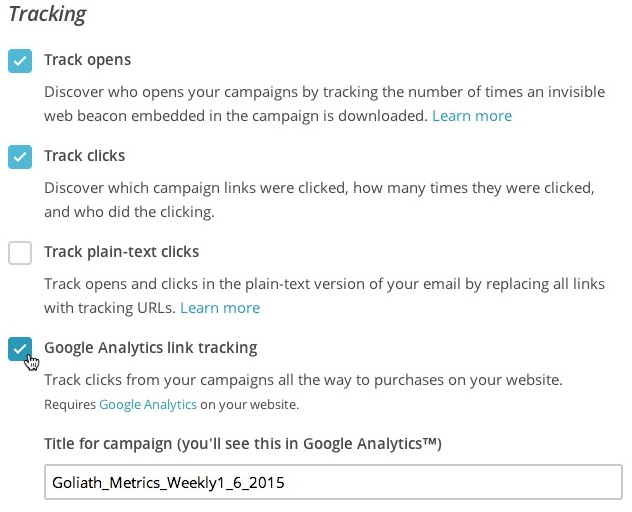
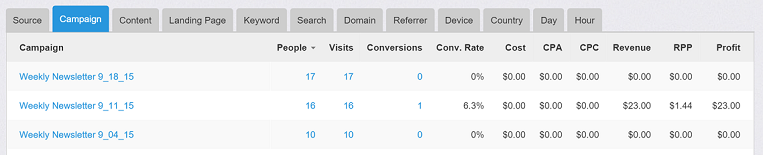
MailChimp will add a campaign name to all the e-mails in your campaign or automation. You’ll find those campaigns in your Improvely Ad Traffic report with all the clicks and conversions each has generated for you.
More from this category
White-Label Settings
You can offer Improvely’s reports from your own domain, with your name and logo on every page, with our white-label feature.
Access the White Label Settings page by clicking on Account Settings at the top of any page.
On this page, you can enter your white-label settings.
Domain — the domain name you want to access Improvely reports from. You can use this feature without buying a new domain by using a subdomain of your site. For example, if your company’s website is example.com, you can access Improvely at reports.example.com or clients.example.com.
You will need to point this domain or subdomain to our servers by creating a CNAME record in the DNS settings of your DNS provider. This is often your web host or domain registration company. The record should point to improvely.com.
Logo URL — the website address of the logo you want to display at the bottom of your reports. Ex: http://www.example.com/mylogo.png
Company Name — the name of your company, which will appear at the bottom of your reports if a logo is not specified. It will also be used as the sender name of any e-mails from your account.
E-mail Address — the e-mail address to be used as the ‘From’ address for e-mail sent by Improvely.
More from this category
Choosing a Conversion Counting Setting
Improvely can track many conversion events on your website, such as:
- Signing up for a newsletter
- Filling out a contact form
- Adding an item to a shopping cart
- Completing a purchase
These events are tracked and sent to Improvely when the visitor on your website loads a webpage to which you’ve added the Improvely Conversion Code. If someone loads one of these tracked webpages multiple times, either by completing the activity multiple times or by reloading the webpage, multiple conversions will be sent to Improvely.
Your Conversion Counting setting determines how Improvely will record, or not record, multiple conversions generated by the same person for the same conversion goal.
The Conversion Counting setting can be found in the Conversion Settings tab of your project’s settings page.
You may choose from the following two options for this setting:
-
Count All Conversions: If this setting is selected, every conversion sent to Improvely will be recorded and appear in your reports. If you track visitors reaching a “Thank You For Your Purchase” page, enable this setting, and the same person makes a purchase on your website on two separate occasions, this will generate two conversions. Both conversions will be recorded and appear in your reports.
-
Count One Conversion Per Goal: If this setting is selected, Improvely will record at most one conversion from each person for each of your conversion goals. If the same person makes a purchase on your website on two separate occasions, only the first occasion will result in a conversion being recorded.
If the same person both subscribes to a newsletter on your website, and makes two purchases on your website, this will result in two conversions being recorded: one for the newsletter signup goal, and one for the purchase goal.
More from this category
Using the Duplicate Conversion Filter
Someone on your website may reload or revisit a webpage containing your Improvely Conversion Code multiple times, sending multiple conversions to Improvely from the same event. For example, someone may bookmark and revisit the “thank you for your order” page at the end of a checkout process, notifying Improvely of the same purchase twice.
If you include an order number, or other unique reference value in your Improvely Conversion Code, Improvely can use this value to identify these duplicate conversions and exclude them from your reports.
The Duplicate Filter setting can be found in the Conversion Settings tab of your project’s settings page.
Check off the box labeled Delete conversions with duplicate reference values to instruct Improvely to exclude duplicate conversions from your reports.
If your conversions do not include a reference value, enabling or disabling this setting will have no effect.
Warning: If your conversions include a reference value, but it is not different for each event you track, enabling this setting may result in loss of data. No more than one conversion with any given reference value will appear in your reports, even if different people generate the conversions.
More from this category