Excluding IP Addresses From Tracking
You may want to exclude your activity, or the activity of your coworkers or clients, from appearing in your reports. You can do this by adding the IP addresses of those people to a project’s IP Exclusion list.
The IP Exclusion setting can be found in the IP Exclusion tab of your project’s settings page.
When you view this page, your computer’s IP address will be shown above the entry box for quick reference.
Enter IPs to be excluded from tracking into the box, one per line.
You can exclude entire ranges of IP addresses from tracking by entering the range in CIDR format.
Any changes you make to this setting will take up to 10 minutes to take effect. That means activity from newly excluded IPs may continue to be tracked and shown in your reports for up to 10 minutes.
To delete visits or conversions that have already been recorded prior to exclusion, you can follow this guide.
More from this category
Using the Conversion Code
The Conversion Code is a snippet of code that sends Improvely details about conversion events you want to track. For example, you can track when your website visitors:
- Sign up for a newsletter
- Fill out a contact form
- Add an item to a shopping cart
- Complete a purchase
From your project’s settings page, click on the Get This Project’s Website Code button to retrieve the Website Code, Conversion Code and Visitor Labeling Code for your site.
To add the code to your website:
-
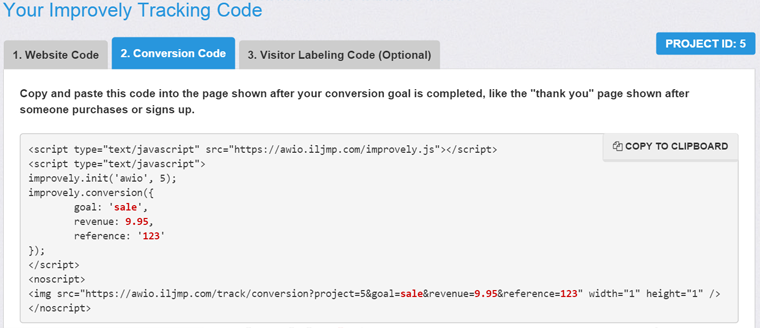
Click the Copy to Clipboard button to copy the code to your computer’s clipboard. Alternatively, highlight the code with your mouse and press CTRL+C or CMD+C.
-
Paste the code into the page you want to track. This is the page shown after your conversion goal is completed, like the “thank you” page shown after someone makes a purchase or signs up.
-
Customize the code to reflect the goal you want to track.
Change the highlighted goal, revenue and reference values in the code to reflect what you want to track.
- Goal: The name of your conversion goal, such as ‘sale’ or ‘newsletter signup’.
- Revenue: The amount of revenue associated with the conversion, like a shopping cart total. It can be 0. Don’t include commas or currency symbols.
- Reference: An optional value like an order number or e-mail address to help you match up conversions in Improvely with your other data.
-
You can track multiple different conversion goals on your site.
Copy the code, edit the highlighted portion to reflect your new goal, and paste it into the webpage someone sees after completing the goal. Repeat for each additional event you want to track.
-
The goal name, revenue and reference values in the code can be dynamic.
You can output values from your shopping cart or other website software within the conversion tracking code to pass things like order totals or order numbers to Improvely.
Below is an example of the Conversion Code edited to reflect a newsletter subscription instead of a purchase. This example also shows how you might integrate dynamic values from your website software. In this instance, we’re printing out an e-mail address stored in a PHP variable as the optional reference data:
<script type="text/javascript" src="https://demo.iljmp.com/improvely.js"></script>
<script type="text/javascript">
improvely.init('demo', 1);
improvely.conversion({
	goal: 'Newsletter Signup',
	revenue: 0,
	reference: '<?php echo $email; ?>'
});
</script>
<noscript>
<img src="https://demo.iljmp.com/track/conversion?project=1&goal=Newsletter+Signup&revenue=0&reference=<?php echo $email; ?>" width="1" height="1" />
</noscript>
Important: Do not copy the code from this example. You have to copy and modify the code from your own account.
More from this category
Using the Visitor Labeling Code
Improvely creates a profile of each person visiting your website containing all of their past visits and conversions. You can label and search these profiles by an e-mail address, username or other identifier by using this code on your site after the visitor has identified themselves — by registering, purchasing or signing in.
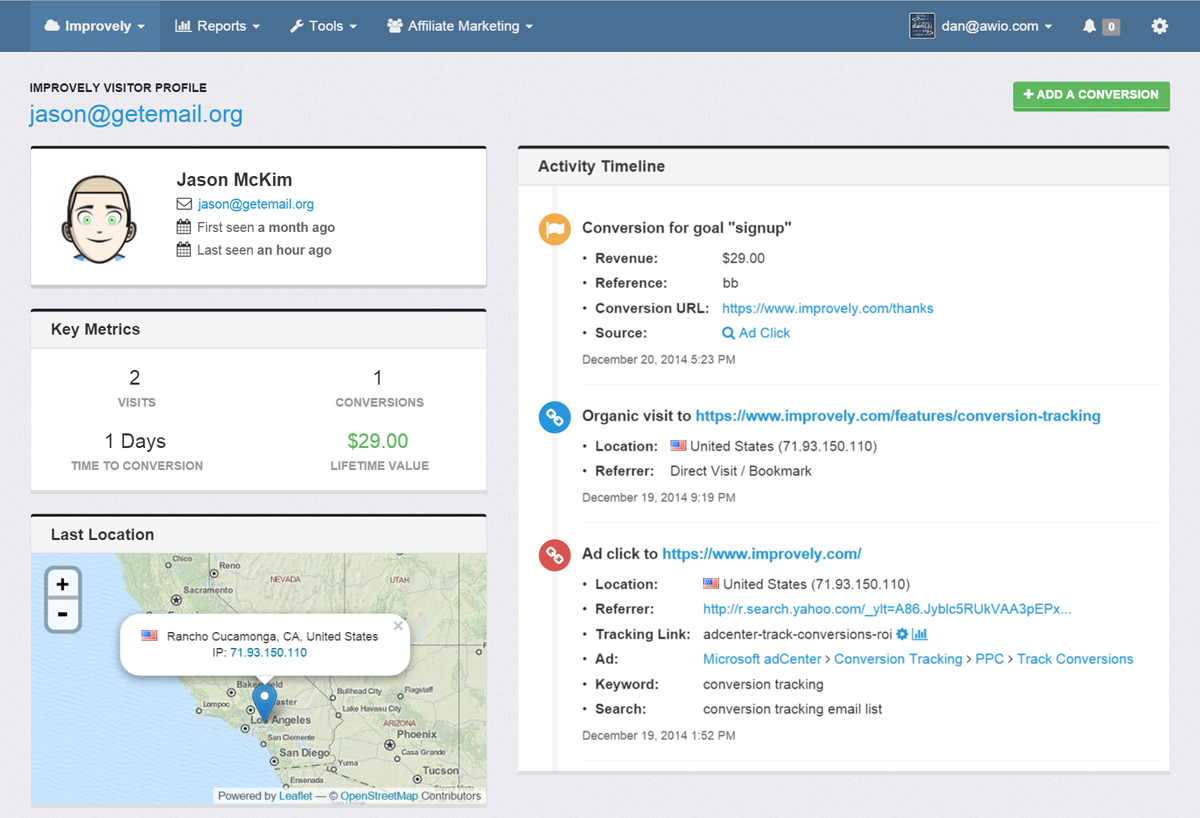
From your project’s settings page, click on the Get This Project’s Website Code button to retrieve the Website Code, Conversion Code and Visitor Labeling Code for your site.
Use of this code is optional and requires custom programming.
To add the code to your website:
-
Click the Copy to Clipboard button to copy the code to your computer’s clipboard. Alternatively, highlight the code with your mouse and press CTRL+C or CMD+C.
-
Paste the code into a webpage visitors see after identifying themselves.
For example, add it to the page shown after someone logs in to an account, or after they fill out a signup form containing their e-mail address.
Include the Visitor Labeling Code underneath the Website Code you’ve already added to your page. Example:
<!-- Website Code -->
<script type="text/javascript">
<script type="text/javascript">
var im_domain = 'demo';
var im_project_id = 1;
(function(e,t){window._improvely=[];var n=e.getElementsByTagName("script")[0];var r=e.createElement("script");r.type="text/javascript";r.src="https://"+im_domain+".iljmp.com/improvely.js";r.async=true;n.parentNode.insertBefore(r,n);if(typeof t.init=="undefined"){t.init=function(e,t){window._improvely.push(["init",e,t])};t.goal=function(e){window._improvely.push(["goal",e])};t.conversion=function(e){window._improvely.push(["conversion",e])};t.label=function(e){window._improvely.push(["label",e])}}window.improvely=t;t.init(im_domain,im_project_id)})(document,window.improvely||[])
</script>

<!-- Visitor Labeling Code -->
<script type="text/javascript">
improvely.label('example@example-email.com');
</script>
-
Add your code to output the visitor’s e-mail address.
For example, improvely.label('<?php echo $email; ?>');
The exact code you need will depend on your website, how and in what language it is programmed, and where you are collecting the visitor’s e-mail address. This is not code that we provide. It is code that your website developer must write.
This information will appear at the top of the visitor’s profile in your account.
Warning: This code requires custom programming to use. You must output the e-mail for the visitor currently on your site, which you would do by writing your own code to e.g. output the data submitted to a form. Never hard-code a static identifier like “anonymous” or “guest”.
More from this category
White-Label Settings
You can offer Improvely’s reports from your own domain, with your name and logo on every page, with our white-label feature.
Access the White Label Settings page by clicking on Account Settings at the top of any page.
On this page, you can enter your white-label settings.
Domain — the domain name you want to access Improvely reports from. You can use this feature without buying a new domain by using a subdomain of your site. For example, if your company’s website is example.com, you can access Improvely at reports.example.com or clients.example.com.
You will need to point this domain or subdomain to our servers by creating a CNAME record in the DNS settings of your DNS provider. This is often your web host or domain registration company. The record should point to improvely.com.
Logo URL — the website address of the logo you want to display at the bottom of your reports. Ex: http://www.example.com/mylogo.png
Company Name — the name of your company, which will appear at the bottom of your reports if a logo is not specified. It will also be used as the sender name of any e-mails from your account.
E-mail Address — the e-mail address to be used as the ‘From’ address for e-mail sent by Improvely.
More from this category
Reset Project Data
You can reset a project to delete all associated visits, conversions, costs and revenue. Resetting a project won’t delete the project or the tracking links created under that project.
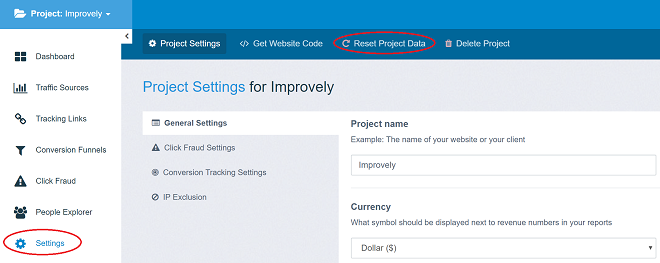
Reset a project by clicking Settings in the left menu, then Reset Project Data in the top menu.
More from this category
Delete a Project
You can delete a project to remove it from your account.
Deleting a project will remove all visits, conversions, costs, revenue, tracking links and other data associated with that project in your account.
Deleting a project is a permanent, irreversible action.
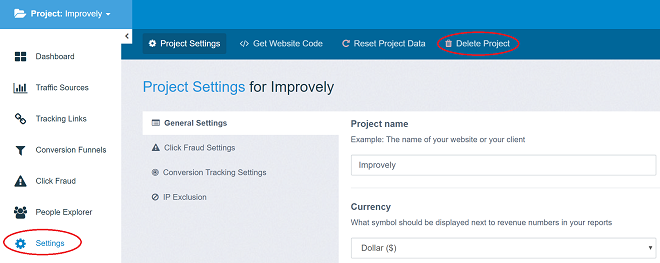
Reset a project by clicking Settings in the left menu, then Delete Project in the top menu.
More from this category
Choosing Your Project Settings
- What Are Project Settings?
- General Settings
- Choosing a Conversion Counting Setting
- Using the Duplicate Conversion Filter
- Choosing a Conversion Attribution Model
- Setting Up Click Fraud Alerts
- Excluding IP Addresses From Tracking
Your Improvely account can contain any number of projects, which typically represent separate websites or clients you’re tracking activity for. Each project has its own data (like visits, conversions and links) and its own settings.
You can create a new project, or modify the settings of an existing project, using the project selection menu at the top left of the screen.
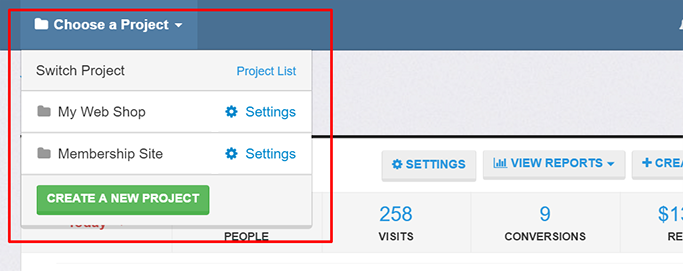
- Click the Create a New Project button to add a project to your account.
- Click the Settings link next to the name of an existing project to modify its settings.
-
Project Name: Use this box to give your project a name, which will appear at the top of each page when working with this project. Typically, a good project name is the name of the website or client you’re using Improvely to track activity on.
-
Currency: Your reports contain monetary figures like ad costs and revenue generated. Here you can choose what currency symbol will be displayed next to these amounts throughout your reports.
-
Track organic and search traffic: Improvely automatically categorizes each visit to your website into three different channels: ad, search, or organic.
Ad traffic includes all visits to your site that originated through clicking an advertisement, or any link you’ve tagged with campaign information.
Search traffic includes all visits to your site from a search engine like Google, Yahoo! or Bing but were not a click on a paid advertisement.
Organic traffic includes all other visits to your site, like those originating from social media posts, links on blogs or other webpages pointing to your site, type-ins or bookmarks.
If you uncheck this box, only ad traffic will be recorded and shown in your reports. Any visits that would be categorized as search traffic or organic traffic will not be recorded and will not appear in your reports.
- Enable Google Analytics URL Builder Compatibility: You may have already tagged some links to your website with campaign information using Google Analytics UTM tags, for example, “utm_source=Facebook”. You may also use other tools that automatically add Google Analytics UTM tags to your links.
If this is the case, you can instruct Improvely to read the campaign information from these tags and treat clicks on these links as part of the ad traffic channel by enabling this setting.
When this setting is enabled, Improvely’s tracking link builder will also add Google Analytics UTM tags to your landing page URLs automatically, so that the campaign information you enter into Improvely will also appear in any other tracking tools you may use.
More from this category
Choosing a Conversion Counting Setting
Improvely can track many conversion events on your website, such as:
- Signing up for a newsletter
- Filling out a contact form
- Adding an item to a shopping cart
- Completing a purchase
These events are tracked and sent to Improvely when the visitor on your website loads a webpage to which you’ve added the Improvely Conversion Code. If someone loads one of these tracked webpages multiple times, either by completing the activity multiple times or by reloading the webpage, multiple conversions will be sent to Improvely.
Your Conversion Counting setting determines how Improvely will record, or not record, multiple conversions generated by the same person for the same conversion goal.
The Conversion Counting setting can be found in the Conversion Settings tab of your project’s settings page.
You may choose from the following two options for this setting:
-
Count All Conversions: If this setting is selected, every conversion sent to Improvely will be recorded and appear in your reports. If you track visitors reaching a “Thank You For Your Purchase” page, enable this setting, and the same person makes a purchase on your website on two separate occasions, this will generate two conversions. Both conversions will be recorded and appear in your reports.
-
Count One Conversion Per Goal: If this setting is selected, Improvely will record at most one conversion from each person for each of your conversion goals. If the same person makes a purchase on your website on two separate occasions, only the first occasion will result in a conversion being recorded.
If the same person both subscribes to a newsletter on your website, and makes two purchases on your website, this will result in two conversions being recorded: one for the newsletter signup goal, and one for the purchase goal.
More from this category
Using the Duplicate Conversion Filter
Someone on your website may reload or revisit a webpage containing your Improvely Conversion Code multiple times, sending multiple conversions to Improvely from the same event. For example, someone may bookmark and revisit the “thank you for your order” page at the end of a checkout process, notifying Improvely of the same purchase twice.
If you include an order number, or other unique reference value in your Improvely Conversion Code, Improvely can use this value to identify these duplicate conversions and exclude them from your reports.
The Duplicate Filter setting can be found in the Conversion Settings tab of your project’s settings page.
Check off the box labeled Delete conversions with duplicate reference values to instruct Improvely to exclude duplicate conversions from your reports.
If your conversions do not include a reference value, enabling or disabling this setting will have no effect.
Warning: If your conversions include a reference value, but it is not different for each event you track, enabling this setting may result in loss of data. No more than one conversion with any given reference value will appear in your reports, even if different people generate the conversions.
More from this category
Setting Up Click Fraud Alerts
Improvely can monitor the clicks on your ads for signs of potential click fraud, such as someone clicking any combination of your ads several times in a day. You can enable or disable this monitoring from the Click Fraud Settings tab located in your project’s settings page.
The following settings can be changed on this page:
-
Enable click fraud monitoring: When checked, Improvely’s click fraud monitoring system will analyze the clicks on all tracking links in your project for signs of potential click fraud.
When unchecked, clicks will be tracked and appear in your reports, but they will not be monitored for fraud and will not generate any fraud-related alerts or warnings to you or your site visitors.
-
Max ad clicks: You can change this value to tell Improvely how many times it should allow any individual person to click any combination of your ad tracking links in a 24 hour period before considering their activity potentially fraudulent.
Only after this number of clicks are recorded in a 24 hour period will the visitor see your warning message. Only after this number of clicks are recorded in a 24 hour period will a Click Fraud Alert be added to your account, and e-mailed to you.
-
Warning message: When any individual clicks any combination of your ad tracking links more than the max ad clicks number of times in a 24 hour period, their click will direct them to a special webpage containing a warning message instead of to your website.
In this box, you can type the warning message you want to be displayed. The message may contain limited HTML code such as text formatting and links.
Tip: You can click your own tracking links without triggering fraud alerts by excluding your IP address from tracking.
More from this category